
Available soon in the following languages:
Release Type: Core Feature
Applicable Role: Supply Zonal Manager
Module: Supply Capping
Objective: Define daily, farm-wise tentative production capacity so Sales demand can be adjusted within safe and realistic limits.
Feature Overview
What is this feature?
The Supply Capping feature allows the Supply Manager to declare a daily, farm-wise tentative production capacity directly in OMS.
This declared capacity acts as a hard upper limit for Sales while planning and adjusting demand.
What this feature is NOT
- It is NOT Raw Material (RM) availability
- It is NOT Finished Goods (FG) stock
- It is NOT actual production confirmation
It is a planning intent, not execution data.
Why was this introduced?
Earlier challenges:
- Sales demand sometimes exceeded realistic production limits
- Warehouse supply adjustment happened after demand
- Supply could be adjusted only once
- No system-level production intent visibility
- High manual coordination between Sales & Warehouse
- Tech Intervention for Adhoc demands
This feature:
- Introduces capacity-first planning
- Aligns Sales, Supply, and Production early
- Enables multiple re-adjustments downstream
Who Can Use This Feature?
| Role | Access |
|---|---|
| Supply Zonal Manager | Full Access |
| Other Profiles | No Access |
Important:
If you have multiple profiles, you must switch to the Supply Zonal Manager profile before accessing this page.
Before You Start (Pre-requisites)
Ensure the following before proceeding:
- Supply Zonal Manager profile assigned
- Farms / Warehouses mapped to your profile
- Understanding of Plus-1 / Plus-2 date logic
Key Concepts
Date Logic
- Entry Date: Plus-1 (Tomorrow)
- Fulfillment Date: Plus-2 (Day after tomorrow)
Example:
- Today: 1st Jan
- Capacity entered on: 2nd Jan (Plus-1)
- Demand fulfilled on: 3rd Jan (Plus-2)
Always think in fulfillment date, not entry date.
Capacity Meaning
Capacity represents:
- How much can be packed & prepared
- Independent of RM / FG visibility
Step-by-Step: How to Add Supply Capping Capacity
Step 1: Login & Select Profile
- Open https://
oms.eggoz.in - Login using Mobile No & OTP
- If multiple profiles are available:
- Click the profile icon on the top-right
- Select Supply Zonal Manager
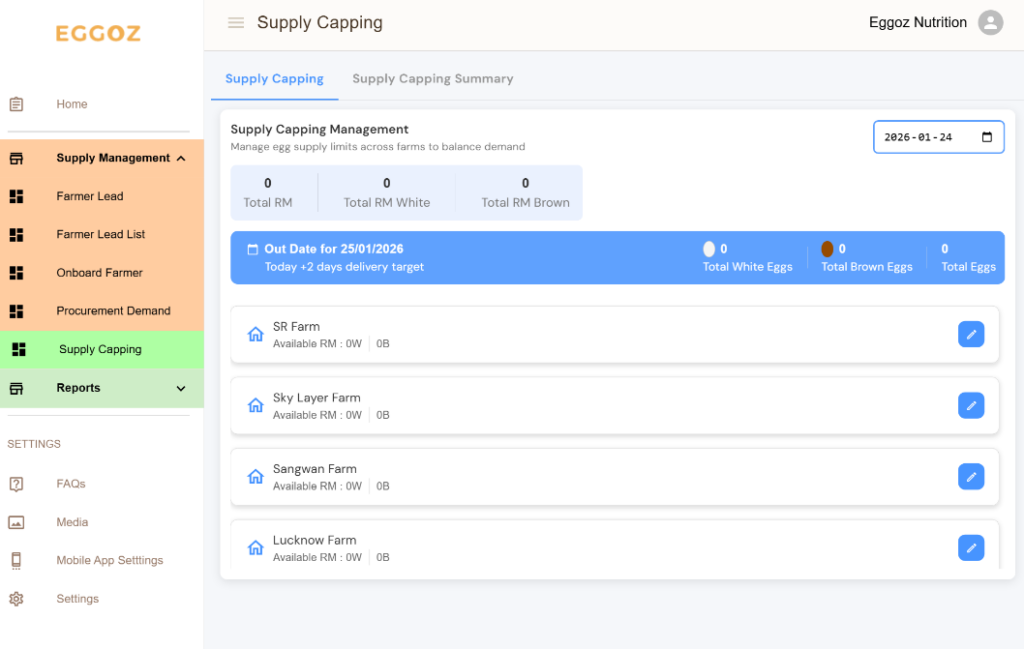
Step 2: Open Supply Capping Page
- After login, the Home page opens
- From the left sidebar, click on Supply Capping
Step 3: Page Overview
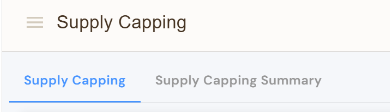
The Supply Capping page has two tabs:
| Tab | Purpose |
|---|---|
| Supply Capping | Add new daily capacity |
| Supply Capping Summary | View & edit added capacity |
Step 4: View Assigned Farms
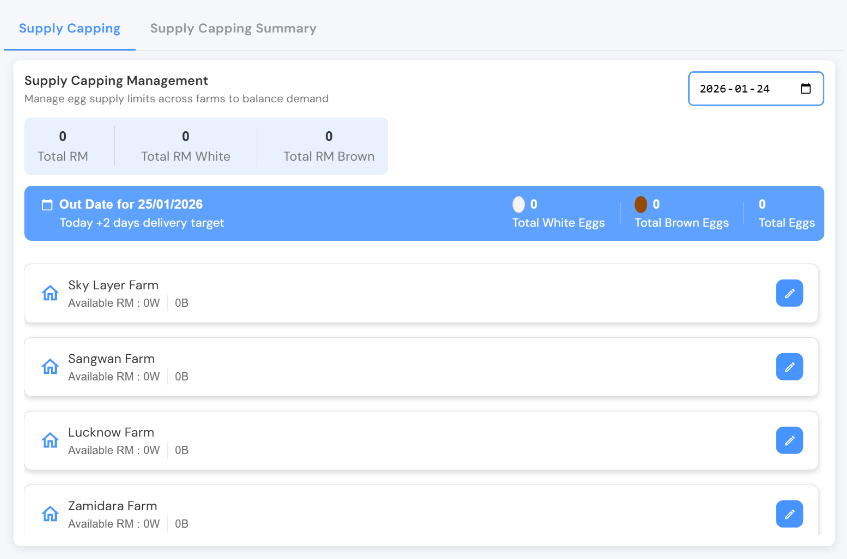
- Under the Supply Capping tab:
- Only farms / warehouses assigned to your profile are visible
- Each farm represents one independent capacity source for their zone
Step 5: Understand Tentative Production Capacity
This capacity:
- Is separate from RM and FG
- Is an approximation
- Tells Sales how much demand can be safely planned
The capacity you add will be used to fulfill Plus-2 demand
On the same page, you also see:
- Total available RM
- Total available FG
These are reference indicators only, not limits.
Step 6: Add Daily Capacity (Plus-1 Entry)
Capacity must be added daily.
Steps:
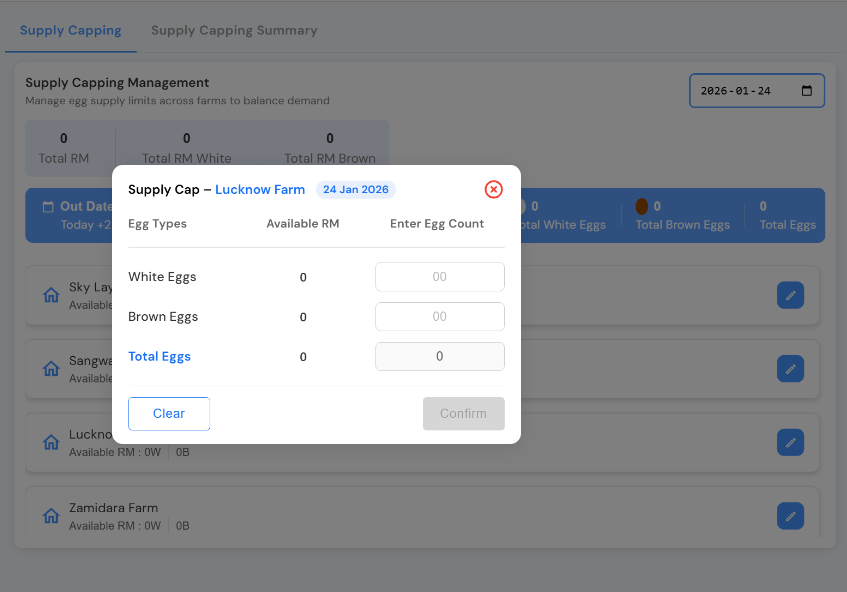
- Click the ✏️ Pencil icon against the required farm
- Enter capacity values:
- White Eggs (X)
- Brown Eggs (X)
Example:
- White Eggs:
1000 X - Brown Eggs:
500 X - Total Capacity = 1500 X
Step 7: Confirm Capacity
- Re-check values carefully
- Click Confirm
- System shows success confirmation
Once confirmed, Sales can immediately adjust demand against it.
Step 8: Capacity Moves to Summary Tab
- After confirmation:
- The farm moves to Supply Capping Summary
- It no longer appears in the main entry list
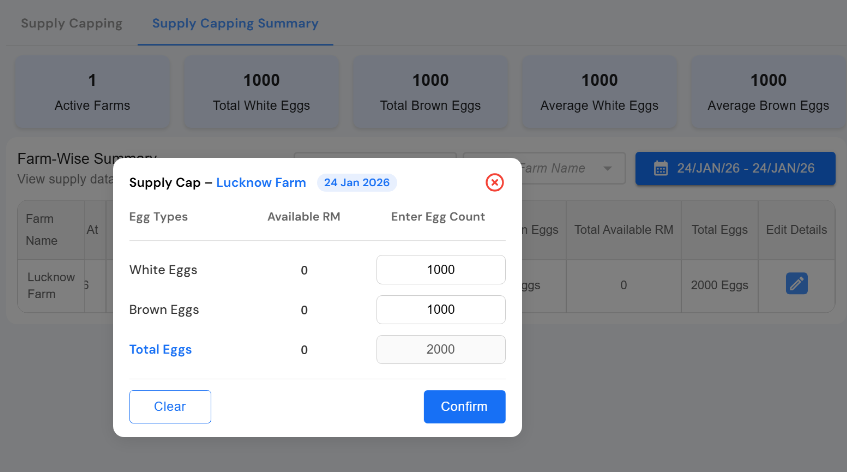
Editing Existing Supply Capacity
Use this if capacity changes.
Steps:
- Open Supply Capping Summary
- Locate the required farm
- Click ✏️ Pencil icon
- Update capacity values
- Click Confirm
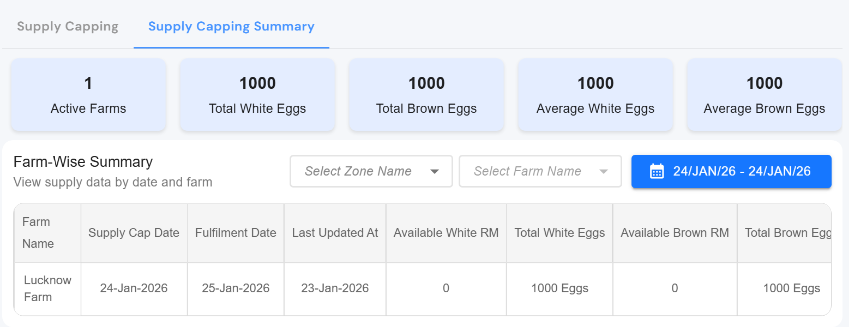
Supply Capping Summary Page Overview
| Column | Meaning |
|---|---|
| Farm Name | Farm where capacity is added |
| Supply Cap Date | Date when entry was made (Plus-1) |
| Fulfillment Date | Date whose demand will be fulfilled (Plus-2) |
| Last Updated At | Last edit timestamp |
| Available White RM | Current RM visibility (reference) |
| Total White Eggs | Added White egg capacity |
| Total Brown Eggs | Added Brown egg capacity |
| Total Eggs | Total declared capacity |
Using the Date Filter
- Date Filter is available at the top-right
- Allows:
- Reviewing past entries (edit allowed)
- Editing future entries (7 days allowed)
Important Rules & Warnings
- Capacity must be added every day
- Sales demand cannot exceed this capacity
Process Impact
| Earlier | Now |
|---|---|
| No production intent / Post Production Adjust | Clear capacity signal |
| Over-commitment / Excess carry forward risk | System-controlled planning |
| Manual coordination / Excel Entry | Automated alignment |
| One-time adjustment | Flexible planning |
Support & Escalation
Contact Tech-Support for:
- Profile access issues
- Missing farms
- Capacity mismatch etc