
Available soon in the following languages:
Release Type: Module Enhancement/Core Process Change (Demand–Supply Allocation v1.0)
Applicable Role: Sales Manager (Zonal / National)
Module: Sales Demand Adjust
Objective: Adjust and prioritize Sales demand against available Supply Capping capacity
Feature Overview
What is this feature?
The Sales Demand Adjust page allows Sales Managers to review, priorities, and adjust generated demand when total demand exceeds available supply capacity added by warehouses.
This page ensures that:
- Demand does not exceed production capacity
- Sales priorities are applied before logistics execution
- Unfulfilled demand is systematically handled via Carry Forward
When is this page used?
This page is used only when:
Total Sales Demand > Available Supply Capping Capacity
If:
- Demand ≤ Capacity → system automatically bypasses this page
- Demand > Capacity → Sales must manually adjust demand here
What this page is NOT
- It does not create new demand
- It does not assign warehouses
- It does not perform final carry forward
Why This Page Changed
Earlier challenges:
- Supply was adjusted after warehouse adjustment
- No way to re-adjust demand multiple times
- Carry forward required cancellation + re-creation
- Sales had limited control once warehouse adjusted supply
This page:
- Shifts control to Sales for prioritisation
- Enables multiple re-adjustments
- Makes carry forward explicit and auditable
- Removes dependency on tech/manual intervention
Who Can Use This Feature?
| Role | Access |
|---|---|
| Sales Manager (Zonal / National) | Full Access |
| Sales Executive / Officers | No Access |
| Warehouse / Supply | No Access |
Important:
Only manager-level Sales profiles can see and act on this page.
Before You Start (Pre-requisites)
Ensure the following:
- Demand is already generated via Trip Management
- Supply Capping is declared for the fulfillment date
Key Concepts
Capacity vs Demand
- Capacity comes from Supply Capping
- Demand comes from Trip Management
- Adjustment happens at zone level
- Allocation is not warehouse-specific yet / dispatch warehouse not allocated
Date Logic
- Demand shown = Fulfillment Date (Plus-2)
- Adjustments affect only the selected date
- Date filter allows future / previous planning/editing
Always confirm the fulfillment date before adjusting.
Step-by-Step: How to Adjust Sales Demand
Step 1: Login & Navigate
- Open https://
oms.eggoz.in - Login using Mobile No & OTP
- Switch to Sales Manager profile
- Navigate to Sales Demand Adjust page
Step 2: Adjust Demand against available Supply Capacity
The page is divided into Zone wise and then demand classification wise beats
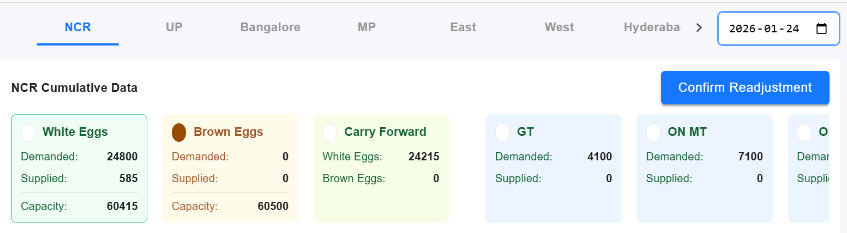
On Top – Available Capacity
- Zone-wise Supply Capping capacity
- SKU-wise totals (White / Brown X)
- Remaining capacity indicator
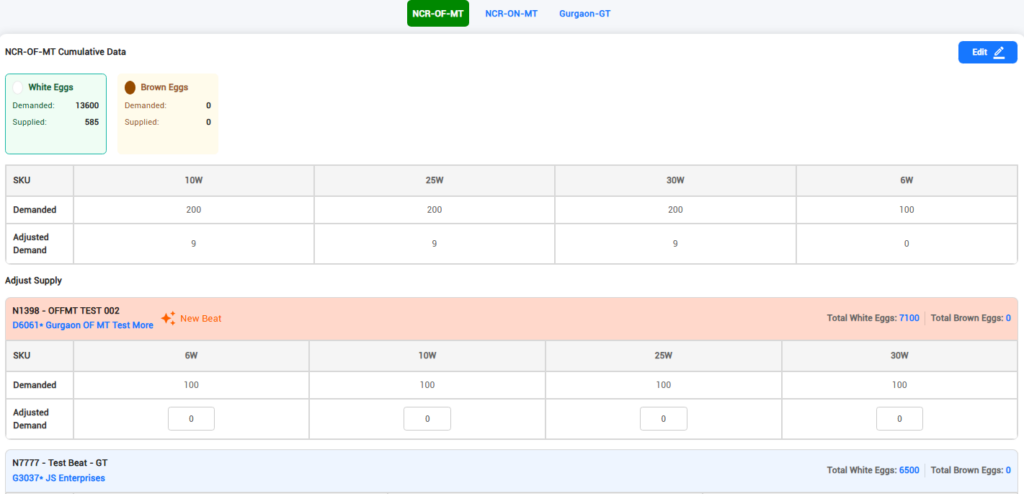
On Bottom – Beat / Retailer Wise Demand Adjustment & Supply Allocation
- Channel-wise (GT / MT )
- Retailer-wise breakup
- SKU-wise quantities
Step 3: Identify Over-Demand Scenario
- If total demand exceeds capacity:
- Adjustment controls become active
- If not:
- Page will show auto-adjusted status
Step 4: Prioritize Demand
Sales Managers can now decide:
- Which channels to prioritise
- Which retailers/platforms get full supply
- Which beats get:
- Full supply
- Partial supply
- No supply (carry forward)
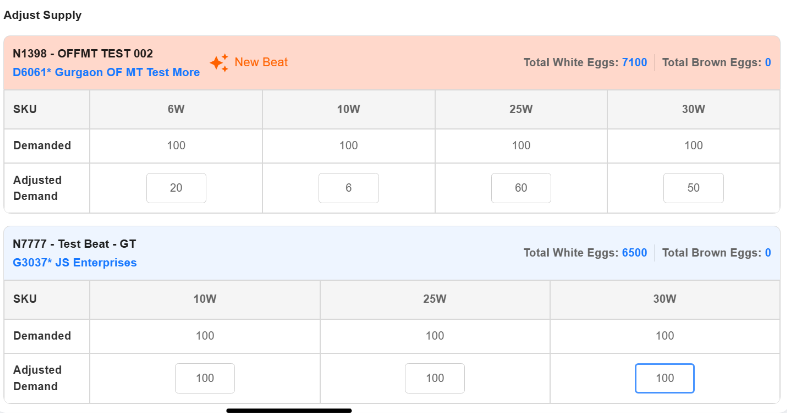
Actions available:
- Increase / decrease SKU quantities
- Reduce quantity to zero (no supply)
- Leave quantity unfulfilled
Step 5: What Happens to Unfulfilled Demand
- Any unfulfilled quantity:
- Full beat OR partial SKU
- Automatically becomes Carry Forward Page (drafts)
- This page does NOT finalize carry forward
Step 6: Save Draft Adjustments
- After adjusting quantities:
- Save / review draft
- Validate:
- Capacity is fully utilised or intentionally left unused
Step 7: Confirm Adjustment
- Click Confirm Adjustment (Top-Right)
- System locks the adjusted demand
- Adjusted beats move forward in the flow
What Happens After Confirmation?
Once confirmed:
- Fulfilled demand → moves to Warehouse Allocation
- Unfulfilled / partial demand → moves to Carry Forward page
- edits allowed on this page for that date if capacity available
Using the Date Filter
- Date filter available at top-right
- Use it to:
- Plan future dates
- Review past adjustments
- Re-adjust if capacity changes
System Rules & Validations
- Demand cannot exceed available capacity
- Adjustments are zone-specific
- Multiple re-adjustments allowed before warehouse allocation
- Partial fulfillment is allowed
- All leftovers will go via Carry Forward
Process Impact
| Earlier | Now |
|---|---|
| One-time adjustment | Multiple re-adjustments |
| Warehouse-driven supply | Sales-driven prioritization |
| Manual carry forward | auto-generated carry forward demands |
| Low flexibility | Full control |
Support & Escalation
Contact Tech-Support for:
- Capacity mismatch
- Missing demand
- Adjustment edit issues
- Visibility problems