
Available soon in the following languages:
Release Type: Core Feature
Applicable Roles: Warehouse Manager, Supply Manager, Plant Head
Module: Warehouse Allocation
Objective: Convert adjusted Sales demand into physical execution by assigning dispatch warehouse(s), packaging locations, and preparing demand for production.
Feature Overview
What is the Warehouse Allocation page?
The Warehouse Allocation page is where planning becomes execution.
After:
- Supply capacity is declared
- Sales demand is generated
- Demand is adjusted
- Carry forward decisions are finalized
This page determines:
- From where the beat will be dispatched
- Where the SKUs will be packed
- How quantities are split across warehouses/farms
What this page controls
This page controls:
- Dispatch warehouse selection
- Packaging assignment (single or multiple locations)
- Material movement visibility (mid-mile)
- Readiness for vehicle loading
- Downstream Production Work Orders
Why This Page Exists
Earlier issues:
- Sales selected dispatch locations
- No clarity on packaging split
- Warehouse adjustments happened too late
- Limited visibility of inward / outward flows
With this page:
- Logistics decisions are owned by Supply/Warehouse
- Packaging can be distributed across locations
- Dispatch remains centralized
- Production teams get clear work orders
Who Can Use This Feature?
| Role | Access |
|---|---|
| Warehouse Manager | Full Access |
| Logistics Manager | View Only |
| Sales Team | No Access |
| Farm Supervisor | View via Production Work Order |
Before You Start (Pre-requisites)
Ensure:
- Demand has been fully adjusted
- Carry Forward decisions are completed
- Supply Capping is already declared
Key Concepts
Dispatch vs Packaging
- Packaging location
→ Where SKUs are packed
→ Can be multiple farms/warehouses - Dispatch warehouse
→ From where vehicle goes out
→ Must be one single warehouse/farm
A beat can be:
- Packed at multiple locations
- Dispatched from only one location
Date Logic
- Warehouse Allocation works on Fulfillment Date
- Same Plus-2 logic as demand
- All filters and actions are date-specific
Page Navigation & Access
Step 1: Login & Profile
- Open https://
oms.eggoz.in - Login using Mobile No & OTP
- Switch to Warehouse profile
Step 2: Navigate to Warehouse Allocation
Navigation Path:
- Home → Plant Head → Warehouse Allocation
Page Overview
The Warehouse Allocation page is divided into three major sections:
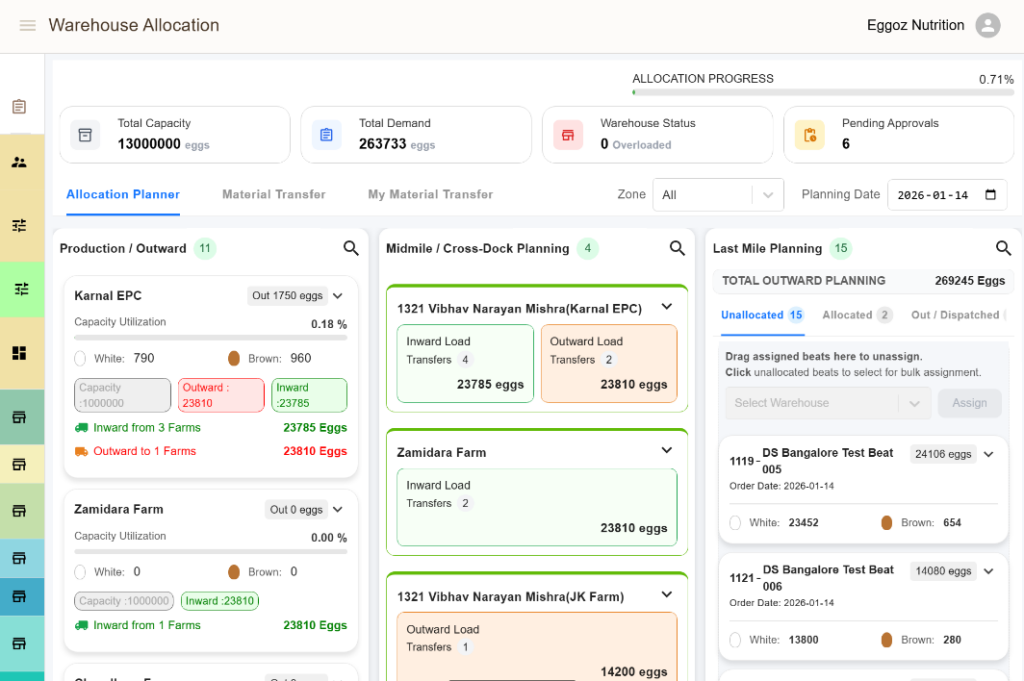
Section 1: Production / Outward (Left)
Shows:
- Warehouses you have access to
- Capacity overview
- Inward load
- Outward load
- Active SKUs
Section 2: Mid-mile (Center)
Shows:
- Material transfers between warehouses
- Inward material from other locations
- Acceptance of material transfers
Section 3: Last-mile Planning (Bottom / Right)
Contains three sub-tabs:
- Unallocated Beats
- Allocated Beats
- Dispatched / Out
Step-by-Step: Warehouse Allocation Process
Step 1: Apply Filters
- Select Zone (or All Zones)
- Select Planning / Fulfillment Date
Always confirm the date before allocating.
Step 2: Review Unallocated Beats
- Go to Unallocated tab
- These beats:
- Are demand-approved
- Have passed Carry Forward
- Are ready for physical allocation
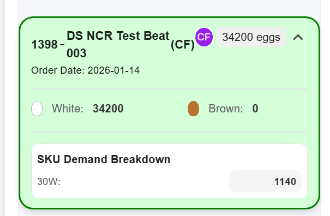
Step 3: Select Beat for Allocation
- Select a beat
- Review:
- SKU quantities
- Channel type
- Zone
Step 4: Assign Packaging Location(s)
You can:
- Assign one warehouse
- OR split packaging across multiple warehouses
Example:
- 10W → Warehouse A
- 30W → Warehouse B
Steps:
- Select warehouse from dropdown
- Enter quantity
- Repeat if splitting
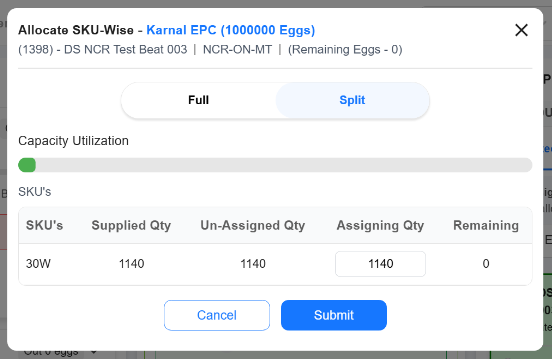
This assignment flows directly to Production Work Order.
Step 5: Select Dispatch Warehouse
- Choose one dispatch warehouse
- This is where:
- Vehicle will be loaded
- Beat will go out from
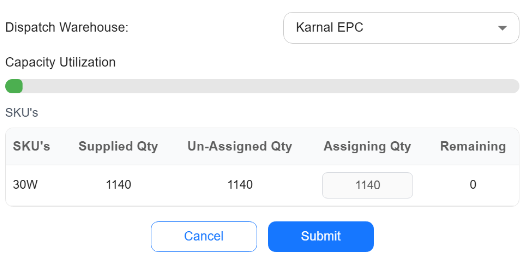
Dispatch warehouse ≠ Packaging warehouse (allowed).
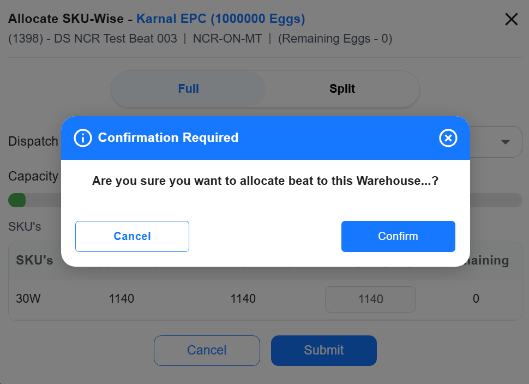
Step 6: Confirm Allocation
- Review all assignments
- Click Assign / Confirm
- Beat moves to Allocated tab
Step 7: Load Beat
- Once warehouse & packaging are set:
- Load Beat button becomes active
- Vehicle assignment
- Mark beat ready for dispatch
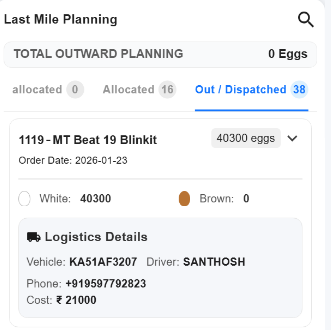
Step 8: Dispatch Tracking
- Dispatched beats move to Out / Dispatched tab
- Status changes to Ongoing / Completed
Mid-mile: Material Transfer (If Applicable)
What is this?
Used when:
- Packaging is done at one warehouse
- Dispatch is from another warehouse
Actions:
- View incoming material
- Accept transfers
- Track internal movement
What Happens After Allocation?
Once allocation is done:
- Production Work Orders are generated
- Farm Supervisors see:
- SKU quantities
- Packaging assignments
- Dispatch linkage
- Warehouse execution begins
No manual communication required.
System Rules & Validations
- Allocation only for adjusted demand
- One dispatch warehouse per beat
- Packaging can be split
- Cannot dispatch without allocation
Process Impact
| Earlier | Now |
|---|---|
| Manual coordination | System-driven allocation |
| Sales decided dispatch | Logistics-owned decisions |
| Low visibility | End-to-end clarity |
| Execution confusion | Clear work orders |
Support & Escalation
Contact Tech-Support for:
- Allocation issues
- Missing beats
- Warehouse visibility problems
- Dispatch lock issues